> For the complete documentation index, see [llms.txt](https://docs.geodin.com/llms.txt). Markdown versions of documentation pages are available by appending `.md` to page URLs; this page is available as [Markdown](https://docs.geodin.com/geodin-ground/workflows-and-integrations/forma-integration.md).

# Sharing ground models with Autodesk Forma

Share GeoDin Ground boreholes, a ground model surface, and borehole reports with colleagues via Autodesk Forma using the Desktop Connector sync workflow.

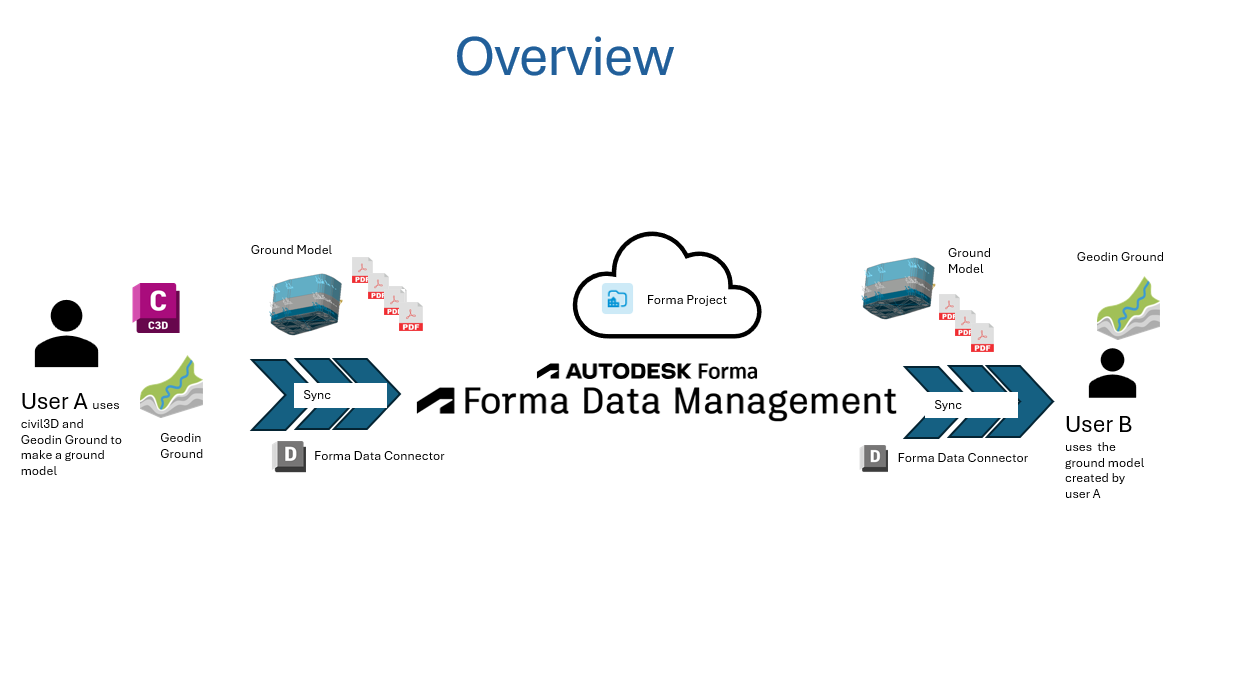
Two people share ground data through a Forma project in the cloud. **User A** (the geotechnician) builds the ground model in GeoDin Ground inside Civil 3D and saves the drawing to a folder that syncs automatically with Forma. **User B** (any colleague with access to the project) opens Forma and sees the drawing and all attached borehole reports - no manual file transfer needed.

<figure><img src="https://540472016-files.gitbook.io/~/files/v0/b/gitbook-x-prod.appspot.com/o/spaces%2FPq7NpdI8RP7yepuTnGLt%2Fuploads%2Fgit-blob-da4a2831511a8c0a95215489d3b101fb38e4de8e%2FOverview.png?alt=media" alt="Diagram showing User A saving a Civil 3D drawing to a Desktop Connector sync folder, which uploads automatically to Forma for User B to view in a browser"><figcaption><p>User A saves the drawing and borehole reports to a local Desktop Connector folder; the files upload to Forma automatically for User B to open in a browser.</p></figcaption></figure>

The sync happens through a free Autodesk tool called the **Desktop Connector**, which creates a local folder on your machine that mirrors a Forma project in the cloud. Anything saved into that folder is uploaded automatically.

## Requirements

| What                        | Notes                                                       |
| --------------------------- | ----------------------------------------------------------- |
| Autodesk Forma account      | With a project already created, or permission to create one |
| Autodesk Desktop Connector  | Free download from Autodesk, installed and signed in        |
| Civil 3D with GeoDin Ground | Licensed and connected to your GeoDin database              |
| Project access              | Both users must be members of the same Forma project        |

## Sharing the ground model

<figure><img src="https://540472016-files.gitbook.io/~/files/v0/b/gitbook-x-prod.appspot.com/o/spaces%2FPq7NpdI8RP7yepuTnGLt%2Fuploads%2Fgit-blob-a506e89511c09049431372f1f4e9ee930228c457%2Fdetailed-flow.png?alt=media" alt="Detailed workflow diagram showing the eight steps from creating a Forma project through to colleagues viewing borehole reports in a browser"><figcaption><p>The full workflow at a glance: from creating the Forma project and setting up Desktop Connector, through to colleagues viewing borehole reports in a browser.</p></figcaption></figure>

1. Create a project in Forma
2. Add the project to Desktop Connector (creates a local sync folder)
3. Open Civil 3D and connect to your GeoDin database
4. Load and draw the boreholes,
5. Save the drawing into the Desktop Connector sync folder.
6. Build the ground model
7. Confirm the sync - icons turn green when upload is complete
8. Check the drawing and borehole reports in Forma

### Step 1: Create a project in Forma

Open Autodesk Forma in your browser and create a new project. Give it a name that matches your site (for example, *Denver*). Make sure any colleagues who need access are added as members.

<figure><img src="https://540472016-files.gitbook.io/~/files/v0/b/gitbook-x-prod.appspot.com/o/spaces%2FPq7NpdI8RP7yepuTnGLt%2Fuploads%2Fgit-blob-949bd16d2d664375d5243fc1e2de4f4f3cec7d75%2Fforma-ui.png?alt=media" alt="Autodesk Forma project list in the browser showing an example site project"><figcaption><p>The Forma project list. Create a project for the site and add any colleagues who need access as members.</p></figcaption></figure>

### Step 2: Set up the Desktop Connector

Install the Autodesk Desktop Connector if you have not already. Once installed and signed in, open it and click **Select Projects**.

<figure><img src="https://540472016-files.gitbook.io/~/files/v0/b/gitbook-x-prod.appspot.com/o/spaces%2FPq7NpdI8RP7yepuTnGLt%2Fuploads%2Fgit-blob-dcd29cd842fdee262135b564f0e533539f8be1d4%2Fdesktop-connector-select-projects.png?alt=media" alt="Desktop Connector dialog with the Select Projects button visible"><figcaption><p>Open Desktop Connector and click <strong>Select Projects</strong> to link a Forma project to a local sync folder.</p></figcaption></figure>

You will see the projects available in your Forma hub. Tick the project you just created and click **Save**, then **OK**.

<figure><img src="https://540472016-files.gitbook.io/~/files/v0/b/gitbook-x-prod.appspot.com/o/spaces%2FPq7NpdI8RP7yepuTnGLt%2Fuploads%2Fgit-blob-dd97d867b08e18c5978c3a78941eace4db9649b8%2Fprojects-in-forma-ui.png?alt=media" alt="Forma hub showing available projects with one project ticked for sync"><figcaption><p>Tick the project and click <strong>Save</strong>, then <strong>OK</strong>. Desktop Connector creates a local folder linked to that project - the folder will be empty at this point.</p></figcaption></figure>

### Step 3: Open Civil 3D and connect to GeoDin

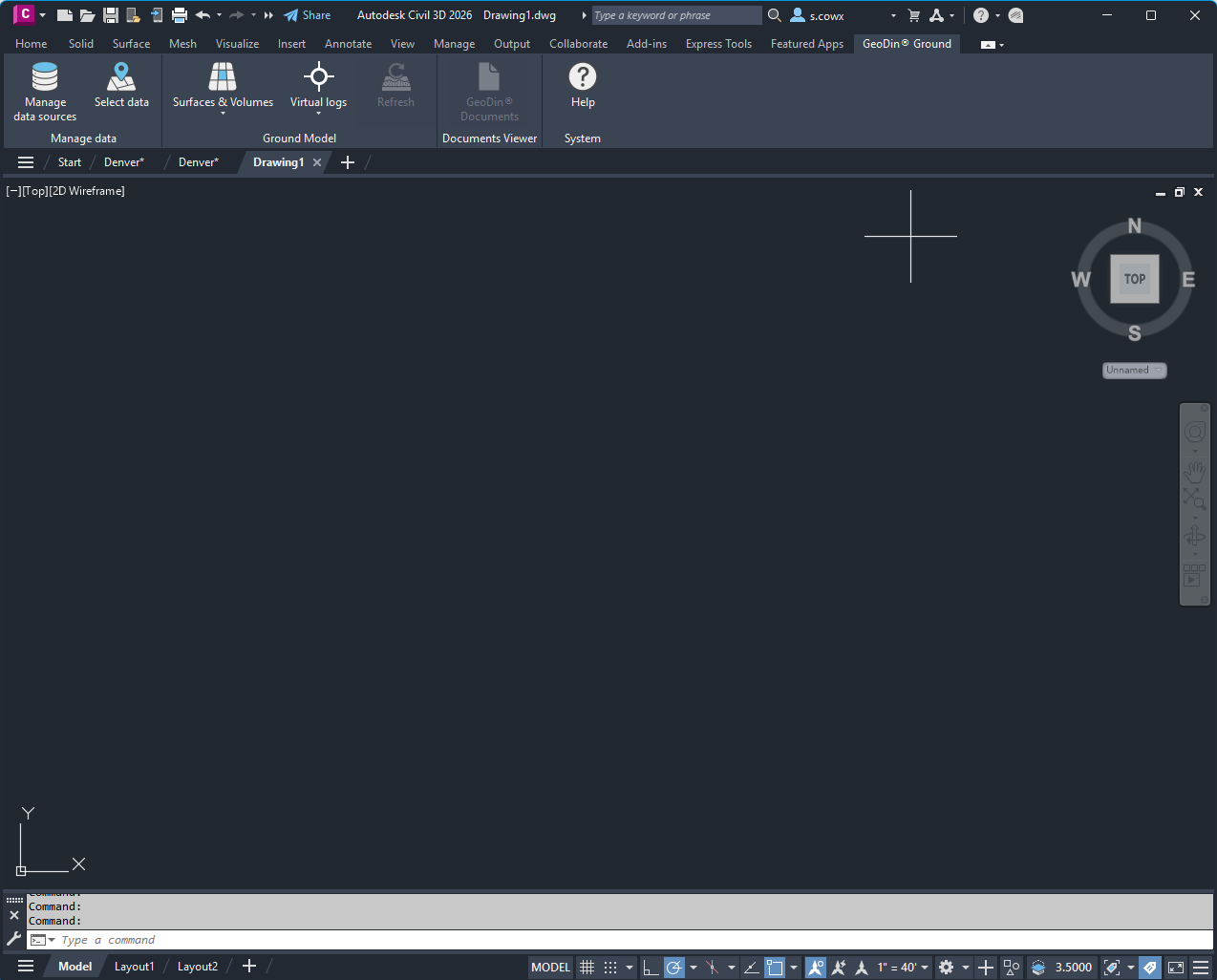
Open Civil 3D and start a new drawing (or open an existing one). In the GeoDin Ground panel, connect to your database and select the site you are working on.

<figure><img src="https://540472016-files.gitbook.io/~/files/v0/b/gitbook-x-prod.appspot.com/o/spaces%2FPq7NpdI8RP7yepuTnGLt%2Fuploads%2Fgit-blob-b39969508fb97aa0aea9a6b8a45d5ab546648326%2Fcivil-3d.png?alt=media" alt="Civil 3D with the GeoDin Ground panel open in the ribbon"><figcaption><p>Civil 3D with the GeoDin Ground panel open. Connect to your database to load borehole data for the site.</p></figcaption></figure>

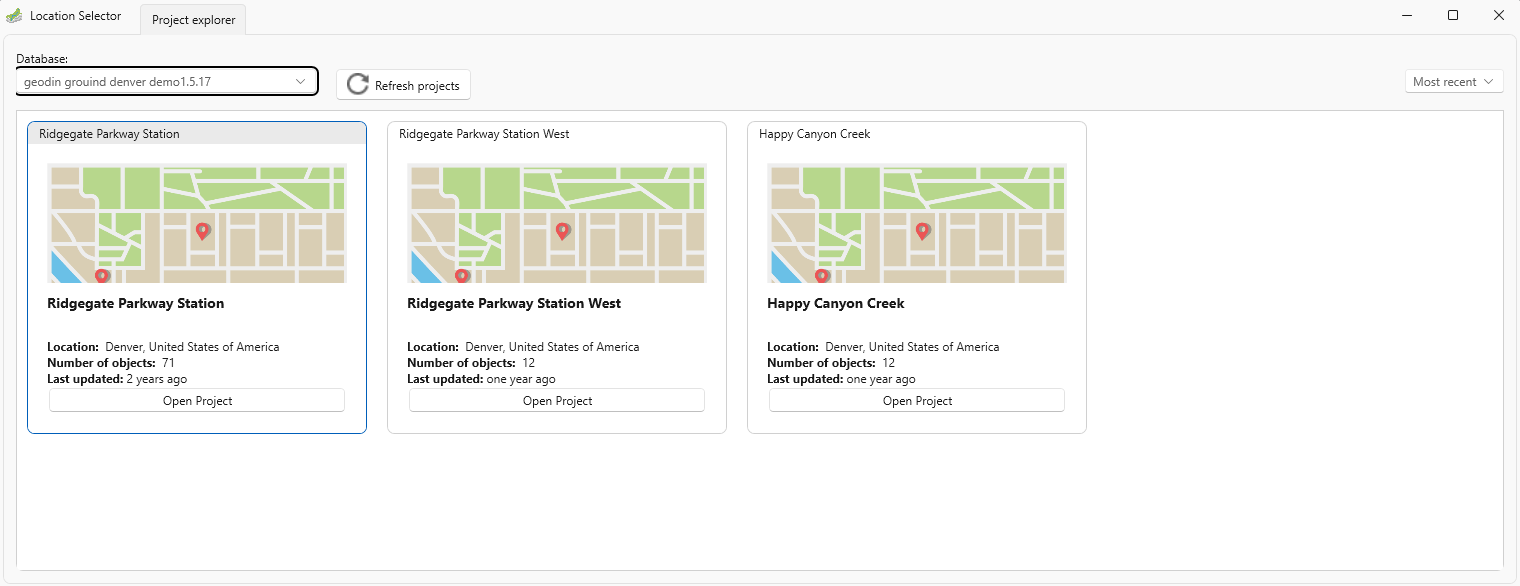
Select your database - in this example the *Denver* demo database is used.

<figure><img src="https://540472016-files.gitbook.io/~/files/v0/b/gitbook-x-prod.appspot.com/o/spaces%2FPq7NpdI8RP7yepuTnGLt%2Fuploads%2Fgit-blob-343fb6e8aa56dd742d6029165674107f6b526044%2FGeodin-Ground-select-denver-db.png?alt=media" alt="GeoDin Ground database selection dialog showing the Denver demo database"><figcaption><p>GeoDin Ground database selection. Choose the database for your site.</p></figcaption></figure>

### Step 4: Load and draw the boreholes,

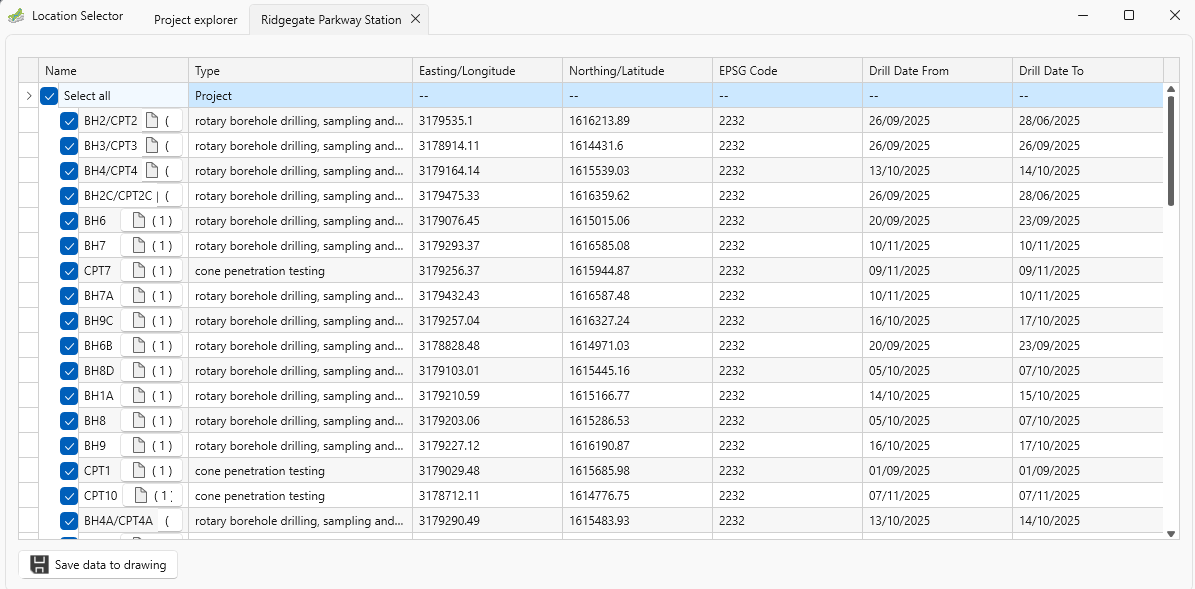
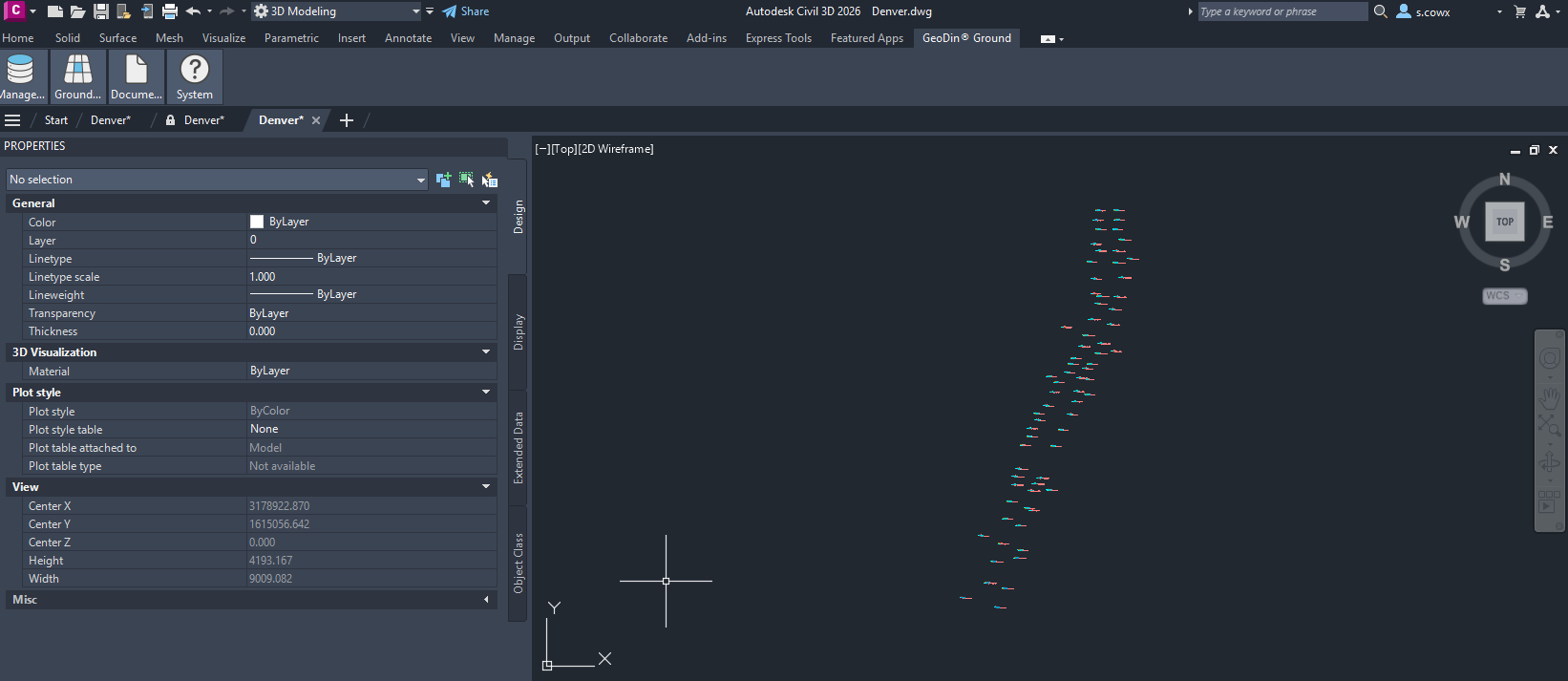
Select the boreholes for your site from the GeoDin database and draw them into the Civil 3D drawing. GeoDin Ground places each borehole at its correct plan position and adds the layer and borehole data.

<figure><img src="https://540472016-files.gitbook.io/~/files/v0/b/gitbook-x-prod.appspot.com/o/spaces%2FPq7NpdI8RP7yepuTnGLt%2Fuploads%2Fgit-blob-f21bc47c187b1cbb0b993eedf3e2832b7125c481%2FGeodin-Ground-select-boreholesb.png?alt=media" alt="GeoDin Ground borehole selection dialog showing boreholes available for the selected site"><figcaption><p>Select the boreholes for your site. You can draw boreholes from more than one GeoDin project into the same drawing.</p></figcaption></figure>

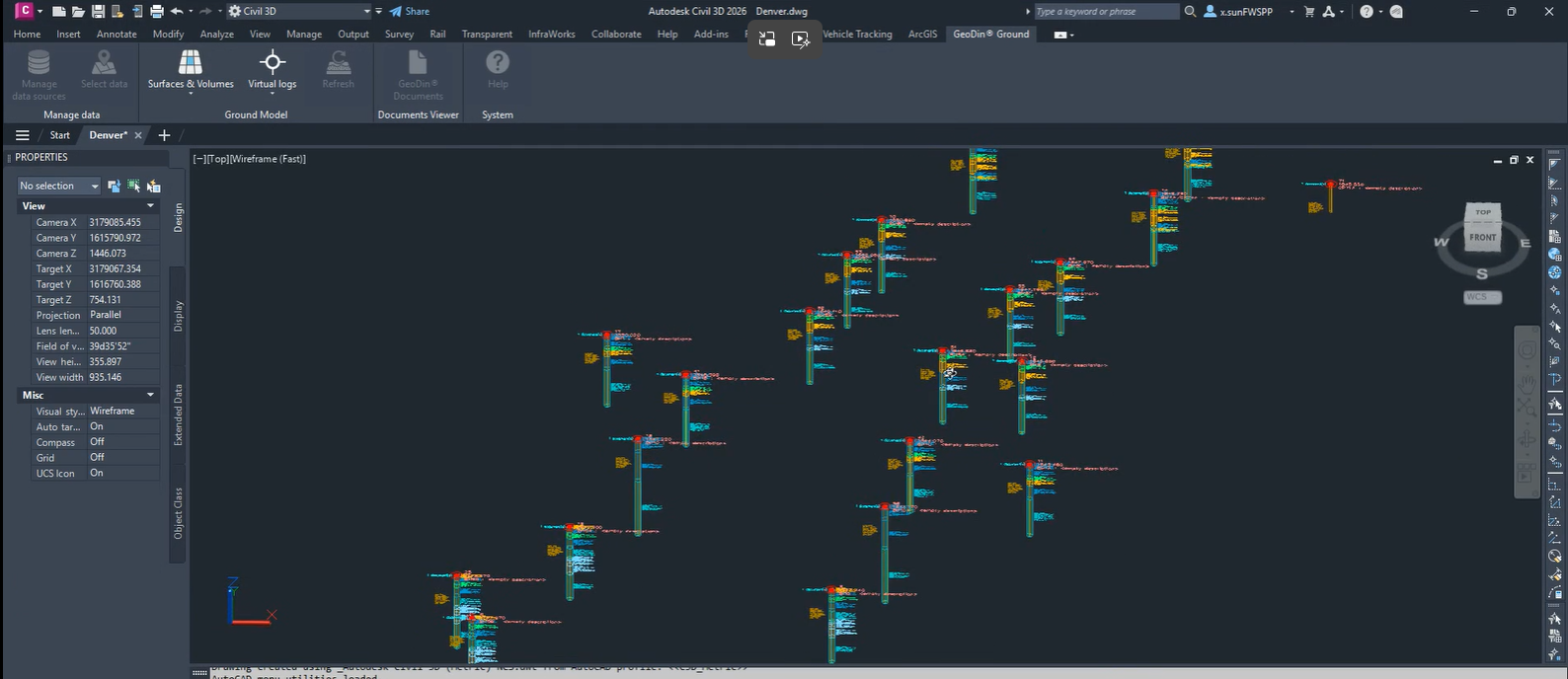
<figure><img src="https://540472016-files.gitbook.io/~/files/v0/b/gitbook-x-prod.appspot.com/o/spaces%2FPq7NpdI8RP7yepuTnGLt%2Fuploads%2Fgit-blob-c22c407adae5c5de4ad3bbfcf18b27415ee08c9b%2Fboreholes-drawn-in-civil3d.png?alt=media" alt="Civil 3D drawing with borehole sticks placed at their correct plan positions"><figcaption><p>Boreholes drawn into the Civil 3D drawing at their correct plan positions.</p></figcaption></figure>

<figure><img src="https://540472016-files.gitbook.io/~/files/v0/b/gitbook-x-prod.appspot.com/o/spaces%2FPq7NpdI8RP7yepuTnGLt%2Fuploads%2Fgit-blob-229e89df193b671d780b9c10a12bc76393db5592%2Fboreholes-drawn-in-civil3d2.png?alt=media" alt="Closer view of the Civil 3D drawing showing borehole detail and layer data"><figcaption><p>A closer view showing borehole detail and layer data.</p></figcaption></figure>

### Step 5: Save the drawing to the Forma sync folder

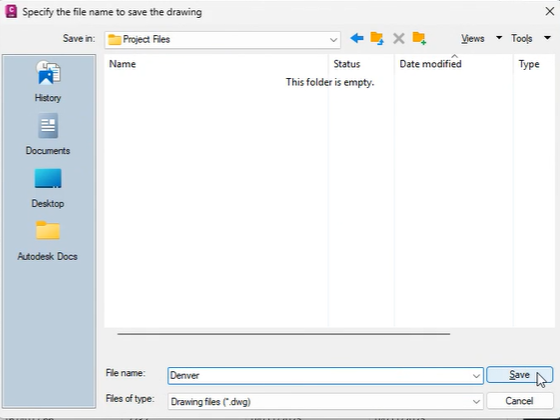
This is the key step. When you save the drawing, **save it into the Desktop Connector folder** created in step 2 - not your usual project folder.

<figure><img src="https://540472016-files.gitbook.io/~/files/v0/b/gitbook-x-prod.appspot.com/o/spaces%2FPq7NpdI8RP7yepuTnGLt%2Fuploads%2Fgit-blob-b9035d04e86780f6785e3581c30ffb7ffab918f7%2Fsave-drawing-to-forma-sync-folder.png?alt=media" alt="Windows Save dialog with the Desktop Connector sync folder selected as the save location"><figcaption><p>Save the drawing into the Desktop Connector sync folder, not your usual project folder. This is what triggers the upload to Forma.</p></figcaption></figure>

As soon as you save, GeoDin Ground automatically exports all the borehole reports (PDF logs) linked to the boreholes in this drawing. These are placed in a sub-folder alongside the DWG file.

<figure><img src="https://540472016-files.gitbook.io/~/files/v0/b/gitbook-x-prod.appspot.com/o/spaces%2FPq7NpdI8RP7yepuTnGLt%2Fuploads%2Fgit-blob-bb15bcfb33bb3f92da951520d077dce8ac1b9c5f%2Ftechnical-reports-saved-in-Forma-sync-folder-alongside-drawing.png?alt=media" alt="Windows Explorer showing the DWG file and a GeoDin Ground documents sub-folder in the Desktop Connector sync folder"><figcaption><p>GeoDin Ground creates a documents sub-folder next to the DWG and exports each borehole's PDF reports into it automatically.</p></figcaption></figure>

### Step 6: Build the ground model

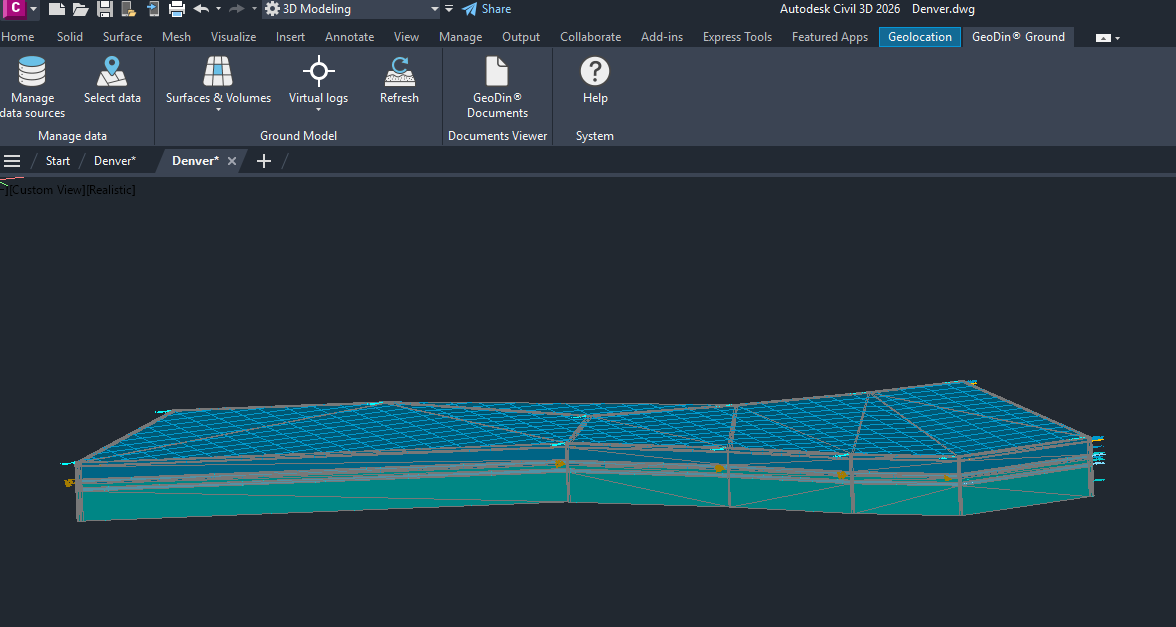
Once you have all the borehole data you need, use GeoDin Ground to create the ground model surface. You can view the result in Civil 3D before saving.

<figure><img src="https://540472016-files.gitbook.io/~/files/v0/b/gitbook-x-prod.appspot.com/o/spaces%2FPq7NpdI8RP7yepuTnGLt%2Fuploads%2Fgit-blob-cd86882e35958d5c85493cec4699164657da0833%2Fground-model-in-civil3d.png?alt=media" alt="Civil 3D showing the generated ground model surface alongside the borehole sticks"><figcaption><p>The ground model surface generated from borehole data, visible in Civil 3D before saving.</p></figcaption></figure>

### Step 7: Confirm the sync

After saving, check the Desktop Connector folder in Windows Explorer. The icons next to the files will turn **green** once they have been successfully uploaded to Forma.

<figure><img src="https://540472016-files.gitbook.io/~/files/v0/b/gitbook-x-prod.appspot.com/o/spaces%2FPq7NpdI8RP7yepuTnGLt%2Fuploads%2Fgit-blob-3da007632f37d5e53370cbb82832a28b1e462ae0%2Fgreen-icon-synchrinised-to-forma.png?alt=media" alt="Windows Explorer showing the synced DWG and reports with green checkmark icons confirming upload to Forma"><figcaption><p>Green icons confirm the files have been uploaded to Forma. If the icons are not yet green, wait a moment and refresh - the sync is usually quick.</p></figcaption></figure>

### Step 8: Check the result in Forma

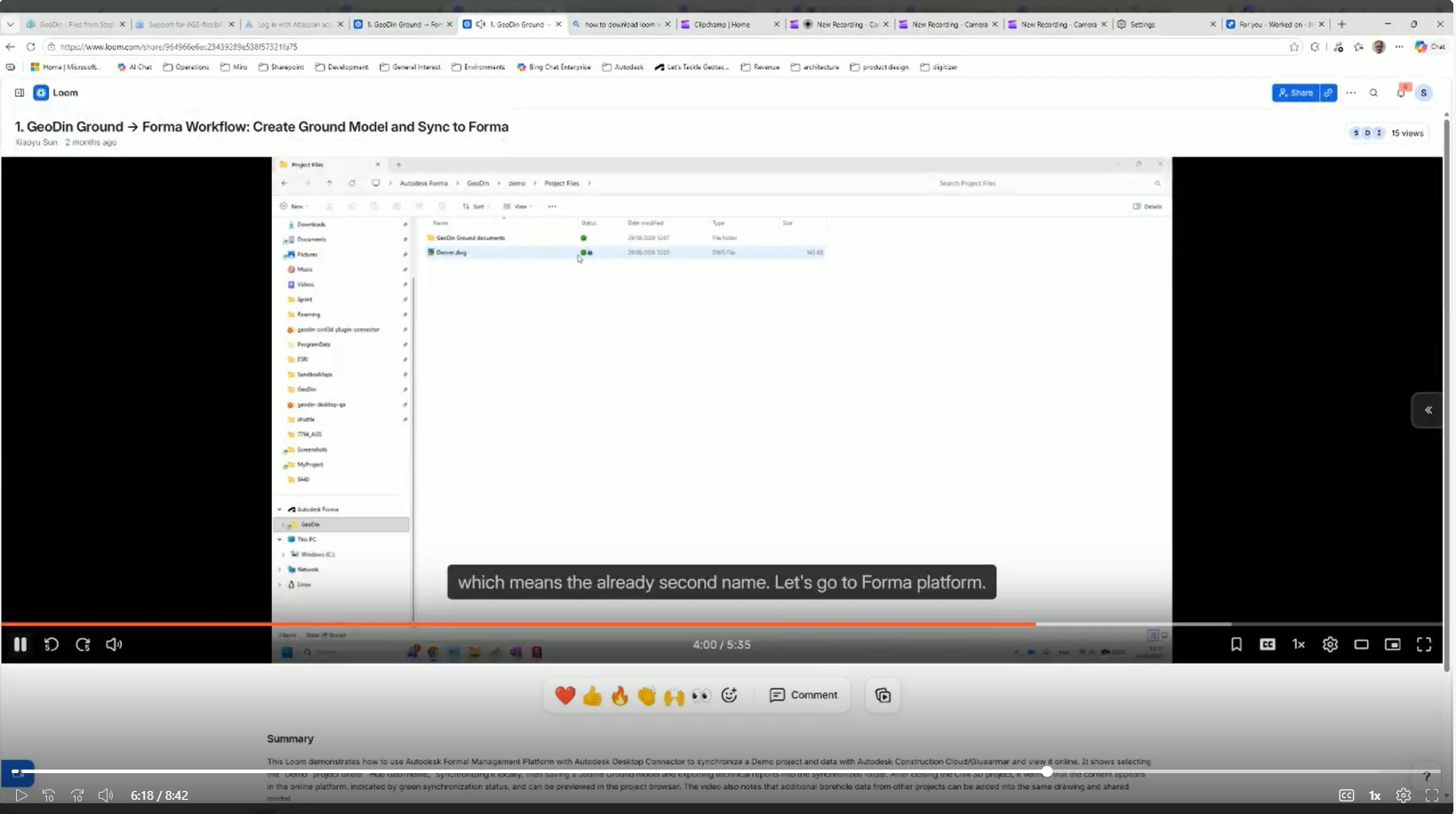
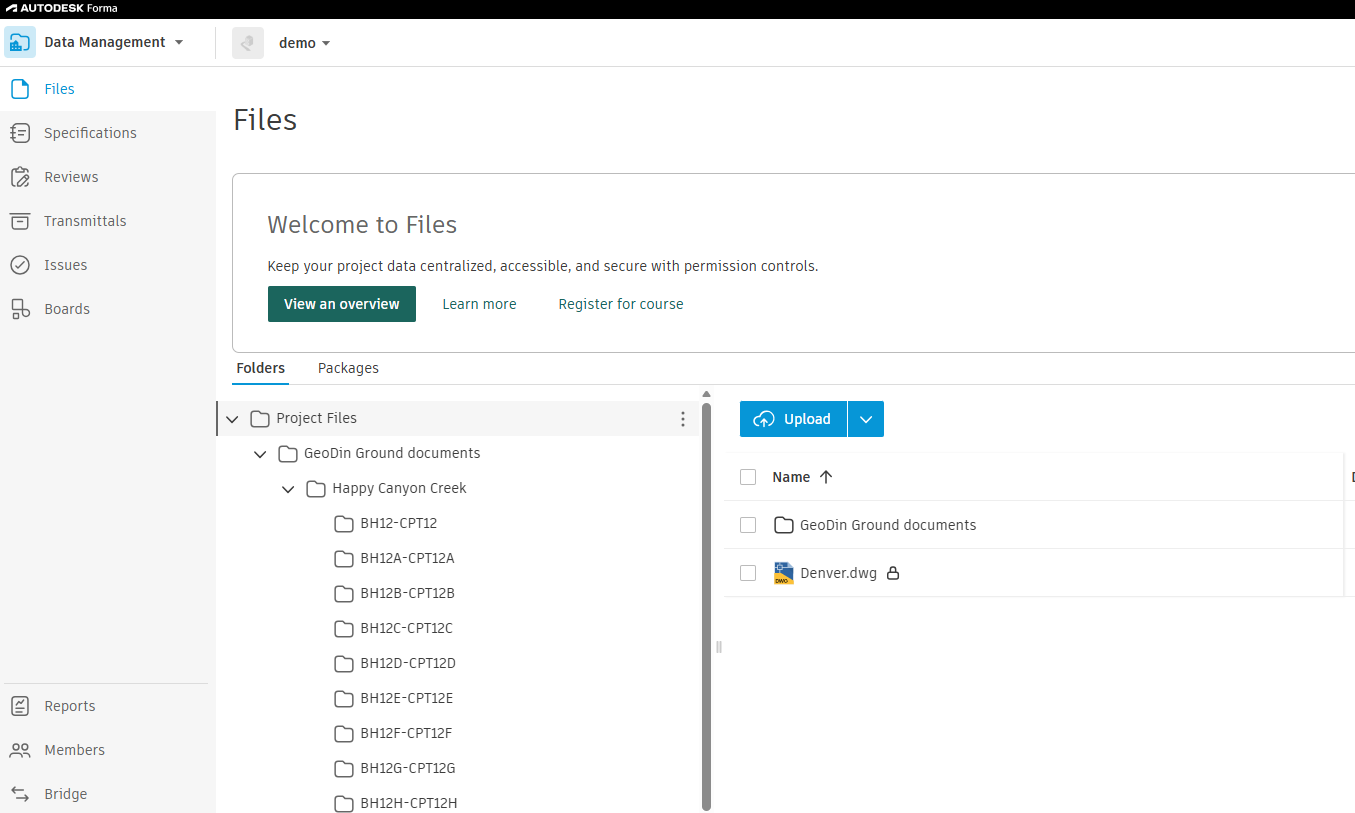
Open Autodesk Forma in your browser and navigate to the project. You will see the DWG file and a folder called **GeoDin Ground documents** (or similar).

<figure><img src="https://540472016-files.gitbook.io/~/files/v0/b/gitbook-x-prod.appspot.com/o/spaces%2FPq7NpdI8RP7yepuTnGLt%2Fuploads%2Fgit-blob-9eeab87499c91866ca0e97f8d9bb40316b1d656c%2Fdemo-project-in-forma-with-synced-drawing.png?alt=media" alt="Autodesk Forma project view showing the synced DWG file and a GeoDin Ground documents folder"><figcaption><p>Forma showing the synced drawing and the GeoDin Ground documents folder alongside it.</p></figcaption></figure>

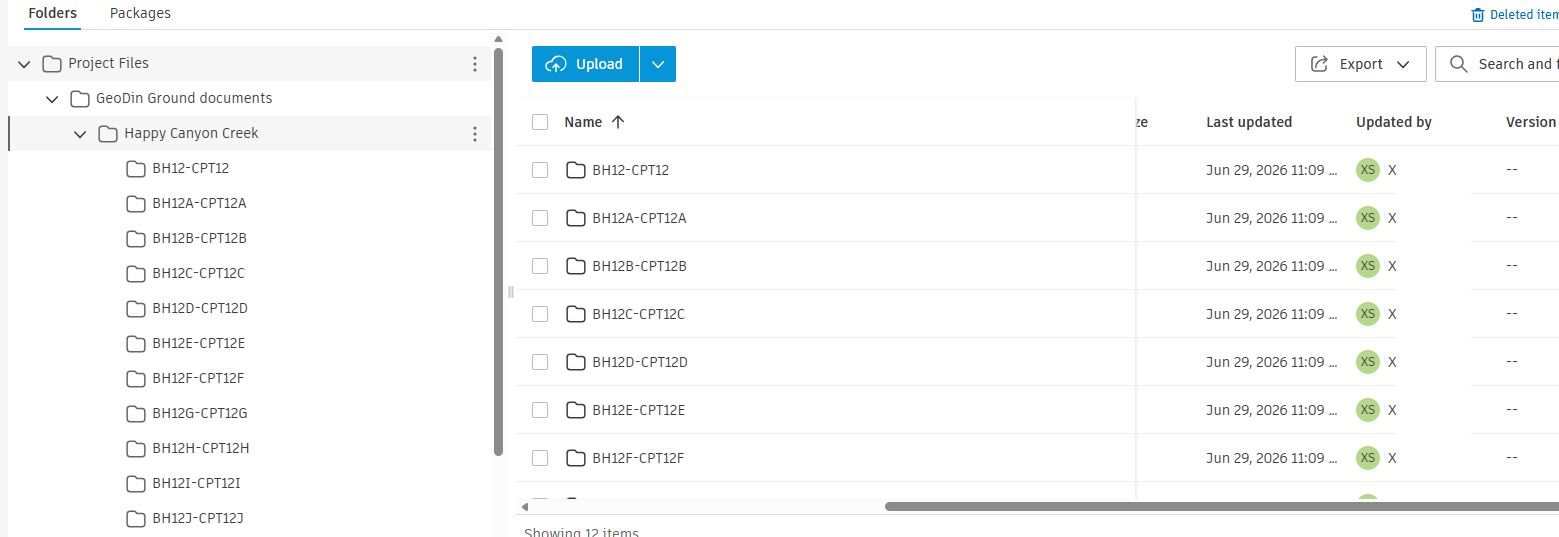
Open the document folder. Inside you will find a folder for each borehole.

<figure><img src="https://540472016-files.gitbook.io/~/files/v0/b/gitbook-x-prod.appspot.com/o/spaces%2FPq7NpdI8RP7yepuTnGLt%2Fuploads%2Fgit-blob-ba4f76950f1dbea7ab1f9214d1fee57070bd8762%2Fforma-borehole-folders9.png?alt=media" alt="Forma document folder open, showing individual sub-folders for each borehole"><figcaption><p>The documents folder contains a sub-folder for each borehole.</p></figcaption></figure>

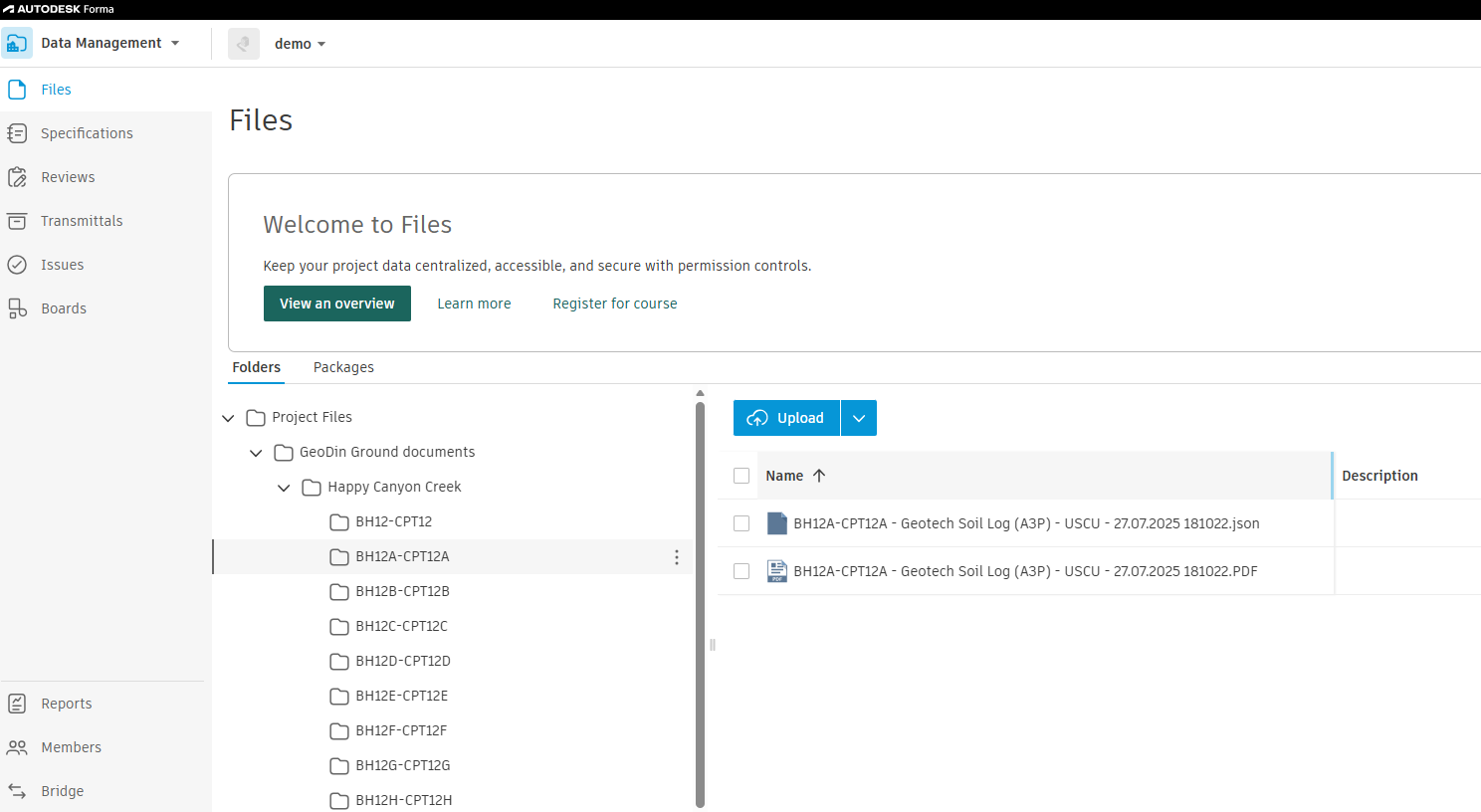
Open a borehole folder to see the geotechnical reports (PDF logs) for that borehole.

<figure><img src="https://540472016-files.gitbook.io/~/files/v0/b/gitbook-x-prod.appspot.com/o/spaces%2FPq7NpdI8RP7yepuTnGLt%2Fuploads%2Fgit-blob-b52f732838ea4e0446992002cce6cb131cc24099%2Fgeotechnical-reports-insiude-borehole-folder.png?alt=media" alt="A borehole folder open in Forma showing the geotechnical PDF report files inside"><figcaption><p>A borehole folder showing the geotechnical reports (PDF logs) for that borehole.</p></figcaption></figure>

Click on any report to open and read it directly in Forma.

<figure><img src="https://540472016-files.gitbook.io/~/files/v0/b/gitbook-x-prod.appspot.com/o/spaces%2FPq7NpdI8RP7yepuTnGLt%2Fuploads%2Fgit-blob-1694584a15e10cfe19fd21340e008c46499811c9%2Fgeotechnical-report.png?alt=media" alt="A geotechnical borehole log PDF open in the Forma browser viewer"><figcaption><p>Click any report to open and read the borehole log directly in Forma.</p></figcaption></figure>

You can also see all reports for all boreholes from the top-level documents folder.

<figure><img src="https://540472016-files.gitbook.io/~/files/v0/b/gitbook-x-prod.appspot.com/o/spaces%2FPq7NpdI8RP7yepuTnGLt%2Fuploads%2Fgit-blob-9b93826e789317123013482a5f371b929eb6904c%2Fall-the-technical-reports.png?alt=media" alt="The top-level documents folder in Forma showing all borehole reports listed together"><figcaption><p>All borehole reports are accessible from the top-level documents folder.</p></figcaption></figure>

***

## Working with Forma

### File locking - what the padlock icon means

When User A has the DWG open in Civil 3D, Forma shows a **padlock icon** next to the drawing file. This prevents two people from overwriting each other's work.

<figure><img src="https://540472016-files.gitbook.io/~/files/v0/b/gitbook-x-prod.appspot.com/o/spaces%2FPq7NpdI8RP7yepuTnGLt%2Fuploads%2Fgit-blob-0e075a873764ebbd31d7064ff213ed0d5371a765%2Fforma-locked-drawing.png?alt=media" alt="Autodesk Forma project view showing a padlock icon next to the DWG file indicating it is open in Civil 3D"><figcaption><p>Forma shows a padlock icon when the DWG is open in Civil 3D. The lock is released when User A closes the file.</p></figcaption></figure>

Once User A closes the file (or releases it), the lock is removed. If you need to force-unlock it - for example if the original user is offline - right-click the file in Windows Explorer via Desktop Connector and choose **Desktop Connector > Unlock**. Use this carefully, as any unsaved changes from the original user could be lost.

### What User B does

User B does not need Civil 3D or GeoDin Ground to view the outputs. They simply:

1. Open Autodesk Forma in a browser
2. Navigate to the shared project
3. Browse the drawing and borehole report folders as shown in step 8

If User B does have Civil 3D and wants to open the DWG locally, they can add the same Forma project to their own Desktop Connector. The drawing and all reports will sync down to their machine automatically.

## Troubleshooting

| Problem                                   | Likely cause                         | Fix                                                                    |
| ----------------------------------------- | ------------------------------------ | ---------------------------------------------------------------------- |
| Files not syncing (icons stay grey)       | Desktop Connector not running        | Check it is open and signed in to the correct account                  |
| Borehole reports missing from Forma       | Drawing not saved to the sync folder | Check the save location; resave to the Desktop Connector folder        |
| Drawing shows as locked                   | Another user has it open             | Wait for them to close it, or unlock via Desktop Connector right-click |
| Project not visible in Desktop Connector  | Not added yet                        | Open **Desktop Connector > Select Projects** and add it                |
| Colleague cannot see the project in Forma | Not a project member                 | Ask a Forma project admin to add them                                  |


---

# Agent Instructions
This documentation is published with GitBook. GitBook is the documentation platform designed so that both humans and AI agents can read, navigate, and reason over technical content effectively. Learn more at gitbook.com.

## Querying This Documentation
If you need additional information that is not directly available in this page, you can query the documentation by asking a question.

Perform an HTTP GET request on the following URL with the `ask` and `goal` query parameters:

```
GET https://docs.geodin.com/geodin-ground/workflows-and-integrations/forma-integration.md?ask=<question>&goal=<user_goal>
```

`ask` is the immediate question: it should be specific, self-contained, and written in natural language.
`goal` is what the user is ultimately trying to achieve, the reason they need the answer. Sharing it helps GitBook give you a better, more relevant answer. A goal is most helpful when it describes the outcome the user wants rather than restating the question. For example, with `ask=how do I create an API token`, a goal like `automate deployments from our CI pipeline` lets GitBook tailor the answer to that use case.

The response will contain a direct answer to the question and relevant excerpts and sources from the documentation.

Use this mechanism when the answer is not explicitly present in the current page, you need clarification or additional context, or you want to retrieve related documentation sections.